






How to Publish an eBook – FAQ & Formatting Help
Thinking about self-publishing an eBook? This guide answers the most common questions about eBook formatting, publishing costs, ISBNs, and how to prepare your file for platforms like Amazon Kindle and Apple Books.
Q: What is an eBook?
Q: What does eBook publishing cost?
Q: What will my Royalties be?
How To Publish an eBook
Q: Do I need to include a Table of Contents for iTunes?
Q: What is the payment plan for selling on iTunes?
Q: When will I receive my royalty check?
Q: What is Delivery Cost for Amazon?
Q: Do you offer Cover Design?
Q: How long does it take to prepare your eBook for iTunes and Amazon?
Q: What is an ISBN number and do you provide one?
Q: Will my eBook look exactly like my printed Book? PDF Method — This method has images only. The downside to this is for small readers, like the iPhone, an 8.5x11 book will appear tiny and cannot be read. This can even be a problem on the Kindle at times, if you take a large book and scale it down to this size. The other way is to import raw text. This is the default way we will create eBooks, simply because it is a more user-friendly platform for the reader, as they are able to blow the text up and manipulate it. Unfortunately, this can wreak havoc on your formatting. Text Method — This method has text only. *Note, your eBook can include images on the pages, if they are formatted correctly. [Formatting images/charts for eBooks] This is why we offer both types of formatting and let you make the decision. If you have a lot of charts, pictures, etc., and if you don’t think your eBook will be that popular on the smaller screens like the iPhone, then the text conversion method is the way to go. We recommend the text conversion method.
Q: How do I Prepare my file for Submission? Document Size= in Microsoft Word (5.5" width x 8.5" height)
Q: What eBook file Types do you provide?
How to Publish an eBook eBook Formatting— Follow these main formatting rules, before you publish your eBook. You must format your Word document correctly, before we publish it. The end result is a downloadable EPUB file for the iPad and Kindle devices. 1) Document Size and Layout = in Microsoft Word (5.5" width x 8.5" height). Your layout must be portrait or a vertical layout for your eBook. Landscape layout books are not accepted.
2) Cover Size = in Photoshop size (650 x 870pixels) at 72 DPI (resolution). *NOTE: You may use 300 dpi for resolution. 3) All Graphics on All Inside Pages (this is optional; and only if you have photos/graphics on the inside pages)= in Photoshop size (324 x 432pixels) at 72 DPI (resolution); Save File(s) as .JPG {*Note: For Saving JPG files= FILE>> SAVE FOR WEB>> JPG/High} All kindle software automatically resizes / recompresses image, including KindleGen from Amazon. The Kindle format 8.0 versions and earlier have the limit of image size 63KB (63x1024 bytes). Images above that size are resized or recompressed automatically. If you need to finely control the resizing / recompressing of any images, use an image editing software to bring the size of the image below 63K in GIF or JPEG format before using it in your publication. It will be stored in the book without any auto-compression. Please be aware that if your images are too big, usually for the ones that are over 500 pixel x 700 pixel in size, your eBook submission may possibly be rejected by iTunes or Amazon. InstantPublisher can help resize these images; however, a minimum $50 editing charge will be added to the base cost. *Note, if you want your graphics/pictures to appear in your eBook, you must resize them in Photoshop or similar editor, then save them and reinsert into Word. Charts must be converted to images, as well, to retain their formatting. Also, in Word please do not wrap text around images. All images should be set "in-line" with text as seen below. Also, please do not put photos beside each other or include text under each photo or graphic. This type of layout does not work for eReaders like iPAD or Kindle. The text or paragraphs must be under the photo or graphic as a normally typed sentence as seen below. *Note, be aware that special symbols may not convert properly to eBook format (EPUB), unless they are characters in a standard font set. For this reason, we ask that you choose a font like Times New Roman for all text and symbols.
4) Page Breaks= in Word, please include [page break] before each chapter.
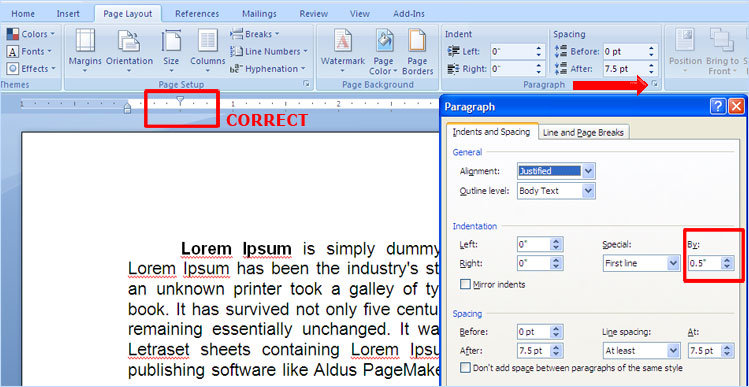
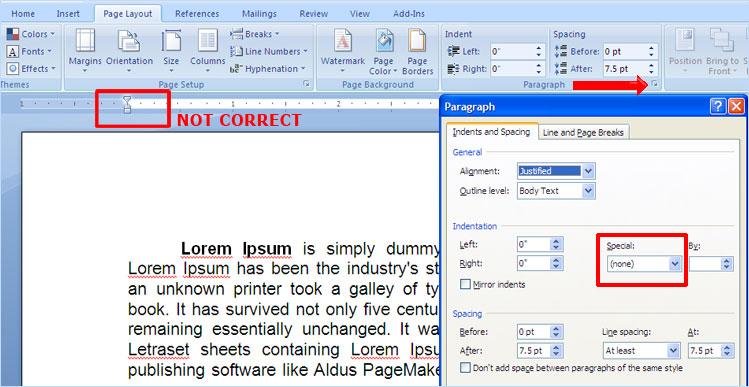
5) Indenting= in Word, please indent your paragraphs correctly, and do not use TAB key on keyboard. Go to>>
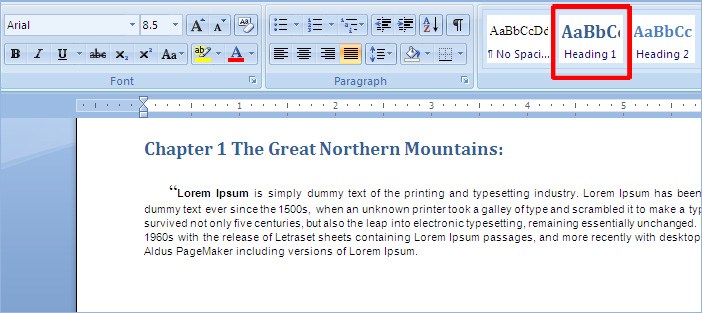
6) Style Chapter Names for Indexing= in Word, highlight all the chapter names individually one by one. Style each chapter name with "Heading1" Style, as seen below. Save your document.
7) Remove any blank pages. In your Word document, please remove all blank pages for your eBook. |